
Configure Sensor Scripts
NexSens X-Series data loggers include a sensor library of common environmental sensors. These can be selected from a predefined list of scripts or created within the CONNECT software. If a new script is created, it must be transferred to the data logger.
Before running a sensor detection, the user must enable the scripts that will run by selecting from the loggers’ sensor library. Activating only the scripts needed for your application will shorten the detection time and streamline programming.
Show Enabled Scripts
- Connect the logger to a PC and launch the CONNECT software.
- In the CONFIG tab, test the connection by reading the RTC clock.
- Still in the CONFIG tab, click Read Script List.
- A list of available sensor scripts will appear.
- Enabled scripts will be marked with a checkmark in the box.

Script list from the X2.
Transferring Script Files
Transfer script files to an X2 Data Logger
Certain situations may require adding a new or updated sensor script to the X2. In such cases, NexSens will provide the script file, which is transferable to the X2 through CONNECT. If using an X3 data logger, proceed to the next section.
- Copy the .lua script file provided by NexSens locally to the PC running the CONNECT software.
- Select the drop-down arrow to the right of the Read Script List button and select the Transfer script file to X2 option.
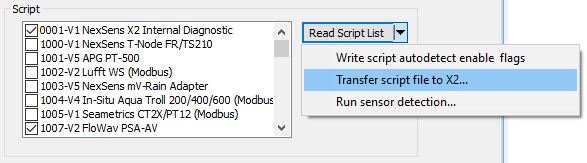
Select Transfer script file to X2.
- Locate and select the script file to add using Windows explorer.
- A confirmation prompt will appear identifying whether the selected script is an updated version of an existing file or a new file altogether. Click Yes to proceed with uploading the new script.
- The script upload will take approximately 10 seconds (potentially longer depending on the script size) before a prompt will appear indicating a successful transfer.
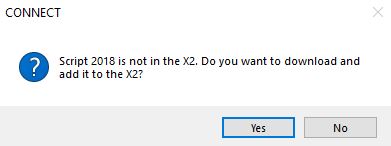
Confirm the script transfer. |
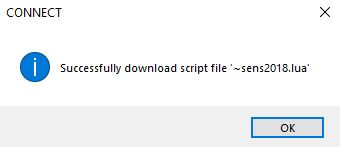
Script transfer success. |
Transfer script files to an X3 Data Logger via Bluetooth
The X3 Environmental Data Logger has built-in Bluetooth connectivity (BLE 5.0). Using the CONNECT software (version 4.24.5.2 or later), users can transfer script files between the X3 and a PC. The CONNECT software will turn off the logger’s internal schedule to avoid any interference with the transfer process.
Bluetooth File Transfer Process
Prior to proceeding, verify that your PC or laptop is compatible with Bluetooth BLE 5.0. This step ensures a seamless transfer process. Additionally, disable the Bluetooth of any nearby devices during the transfer to prevent any potential connection issues. NexSens recommends the tp-link Bluetooth 5.0 Nano USB Adapter as an affordable Bluetooth adapter option.
- From the CONFIG tab, select Transfer script file to X3 (BLE)…

Script transfer Bluetooth utility.
- The CONNECT software will open up the local file directory. Select the script file to transfer. Once the script is selected, the Script File Transfer (BLE) utility will display.
- Note: All script files must begin with the 4-character ‘sens’, followed by the 4-digit script number, and then end with the ‘.lua’ file extension (e.g., sens2020.lua).

Script File Transfer (BLE) utility.
- Review the script’s file path at the top of the utility. If the incorrect file is selected, use the Browse… option to select the correct file.
- Confirm that the device name matches the logger’s body tag. Then, select the X3MAIN device with the proper body tag.
- If the incorrect logger or no logger is displayed, cycle power (disconnect and re-connect the power source) on the logger and then select Re-Scan.
- If the logger is still not shown, double-check the Bluetooth settings on the connecting device.
- Once the proper logger is selected, enter the last five digits of the logger’s body tag (e.g., 25499) as the Passcode.
- Select Start at the bottom and then Yes if you want to transfer the script file to the X3.
- The utility will display the progress of the file transfer.

File transfer in progress.
- Once complete, select Yes to exit the firmware update tool or No to transfer additional script files. Confirm the script has been successfully transferred by reading the updated script list.
Modify Sensor Detection List
- Select Scripts
- In the script list, use the checkboxes to enable or disable scripts as needed.
- Always enable:
- 0001 script for X2 models
- 0002 script for X3 models
- These provide vital system diagnostic information.
- Note: The more scripts enabled, the longer the automatic sensor detection will take. Enable only the scripts for sensors connected to the logger.

Configure X2 sensor scripts.
- Write Changes
- After making selections, click the drop-down arrow next to Read Script List and choose Write Script Autodetect Enable Flags.
- A prompt will confirm that the selected scripts have been enabled.
- Verify Update
- Click Read Script List again to confirm the updated script list.